Water · Click an outlet
Catchment area calculator for culverts, gullies and streams
This catchment area calculator maps all the land upstream of a point you click, a culvert inlet, a gully mouth or a stream crossing, and reports the contributing area in hectares. It walks the drainage directions of the LINZ 1 m LiDAR model back up from the outlet.
Search results for "catchment calculator" are mostly roof rainwater tools. This is the ground catchment, which is the number culvert, dam and detention pond sizing starts from.
Free to run · pay to download
See the full result on the map free, with no account. Download the catchment grid as a GeoTIFF with a pass: NZ$49 for 7 days or NZ$299 for 12 months, one-off, GST included, not a subscription. Every download on the site is included while the pass lasts.
Who uses this
- Engineers and designers. Get the contributing area for culvert and stormwater sizing.
- Farmers. Size a culvert or a dam by the land that drains to it.
- Owners. See whether runoff comes from a neighbour's block or the road.
When to use it
- Sizing a culvert, a dam or a detention pond by the area draining to it.
- Seeing whether runoff onto your land comes from a neighbour's block or the road.
- Checking how much land drains to a low corner or a stream crossing.
Which tool for your job
Catchment is one step in a bigger question. These are the jobs it helps with, and the tools that go with it.
If you’re working on drainage, flooding and wet ground
Where does the water go, and where will it sit?
- 1.Water & Drainage — The drainage channels across an area, and where water ponds once hollows fill.
- 2.Wetness Map — Which parts of a paddock the shape of the land keeps wet.
- 3.Catchment (this tool) — All the land that drains to one culvert, gully or low corner.
- 4.Landforms — Hollows, valleys and footslopes at a glance: where water gathers.
How to use it
- Open Catchment and click the outlet: the culvert inlet, the gully mouth or the point on the stream you care about.
- Set the terrain search radius. Default 2 km; up to 5 km.
- Leave outlet snapping on so a click on a bank or a sandbank still lands on the channel, or set it to Off to use the exact cell.
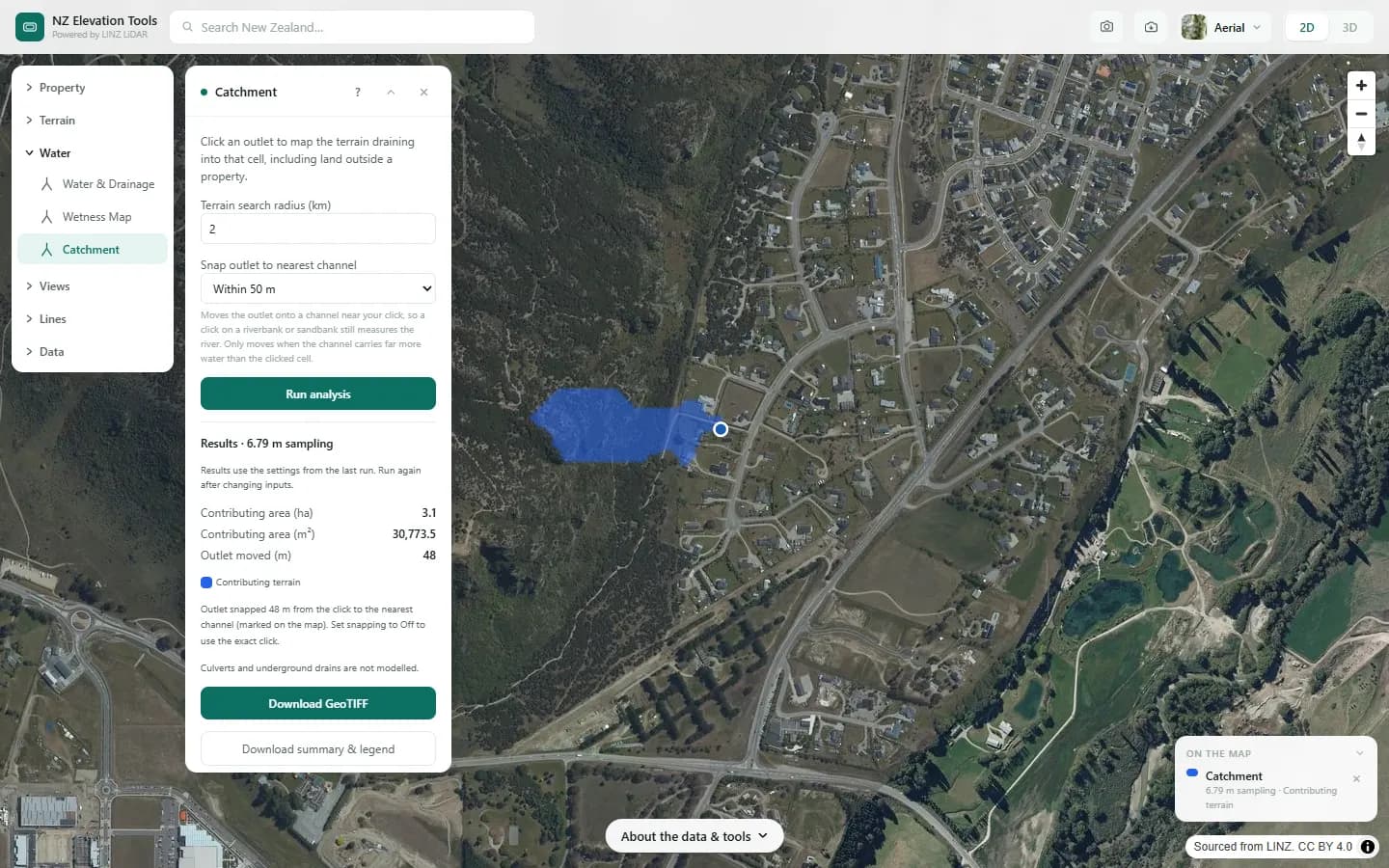
- Run. The blue area drains to the outlet. If it touches the edge of the loaded terrain, increase the radius and run again.
Step by step: Mt Iron, Wānaka
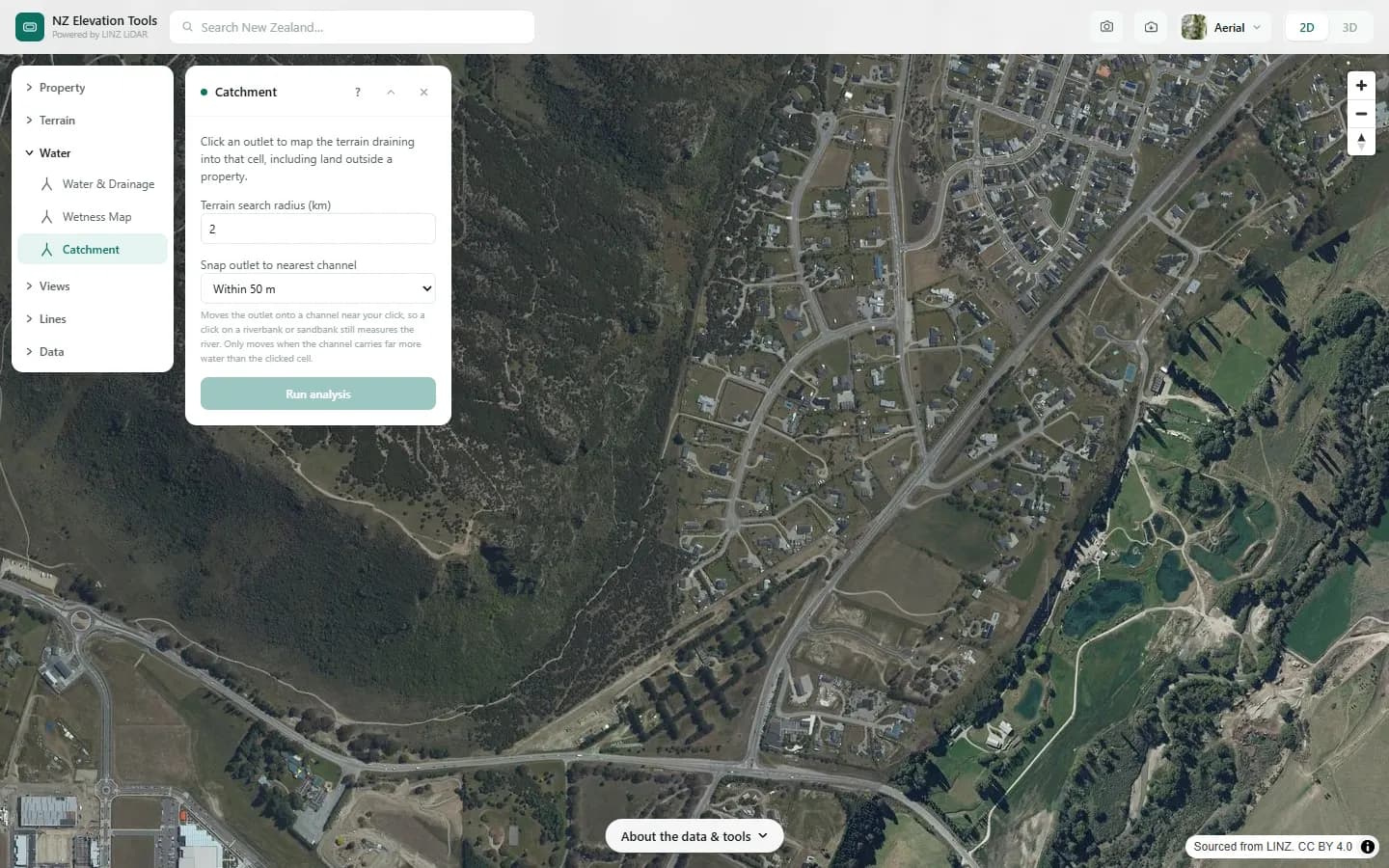
We find all the land that drains to a gully at the foot of Mt Iron.
What it showed
- If the blue area touches the edge of the loaded terrain, increase the search radius and run again.
Screenshots from NZ Elevation Tools. Aerial imagery from LINZ Basemaps. Sourced from the LINZ Data Service and licensed by Environment Southland, Otago Regional Council and Queenstown-Lakes District Council for re-use under the Creative Commons Attribution 4.0 International licence.
How it works
A square of LiDAR bare-earth terrain is loaded around the click. Small pits are filled, each cell is assigned its steepest downhill neighbour, and the tool walks back up those directions from the outlet, collecting every cell that eventually drains into it.
With snapping on, the tool first looks within the chosen distance for the cell that collects the most upstream water, and moves the outlet there if it carries at least ten times what the clicked cell does. The moved outlet is marked on the map and the distance reported.
Reading the results
Contributing area is given in hectares and square metres.
A partial catchment warning means the true catchment extends beyond the loaded terrain, so the area is a lower bound.
Limits and warnings
- Terrain is loaded to 5 km at most, so a river's catchment will always be reported as partial.
- Culverts, pipes and stopbanks are not in the terrain. Water is routed over roads and through embankments.
- On flat ground a few centimetres decide which way water goes, and the boundary can look arbitrary.
Data and attribution
Results come from the LINZ national 1 m LiDAR bare-earth elevation model, read in your browser, with the national 8 m model filling any gaps. Tools that use the surface model (Sunlight, Viewshed, Object Heights) read the matching LiDAR surface tiles.
Elevation and cadastral data is sourced from the LINZ Data Service and licensed for re-use under the Creative Commons Attribution 4.0 International licence. Copyright in each LiDAR survey belongs to the body that commissioned it — a regional or district council, Waka Kotahi, NIWA and around thirty others — rather than to LINZ, which hosts and processes the national dataset. Every file exported from this site names the licensors whose surveys cover the area, and anything you publish from those files carries the same attribution requirement. See https://www.linz.govt.nz/products-services/data/licensing-and-using-data/attributing-elevation-or-aerial-imagery-data
Questions
Does this size the culvert for me?
No. It gives the catchment area, which is the first input to a culvert or pond design. Rainfall intensity, runoff coefficients and pipe capacity come next, usually from an engineer or your council's code of practice.
Why does it say "partial catchment"?
The catchment reaches the edge of the terrain loaded, up to 5 km, so the true area is larger. Increase the radius, or accept that a river's catchment is too big for this tool.
Ready to try it?
Open Catchment on the map →Free to use, no account. Runs in your browser on LINZ open data. Downloading the results needs a pass: see prices.