Property · Select a property, draw a box or polygon, or upload a boundary
Compare the terrain of up to five New Zealand properties
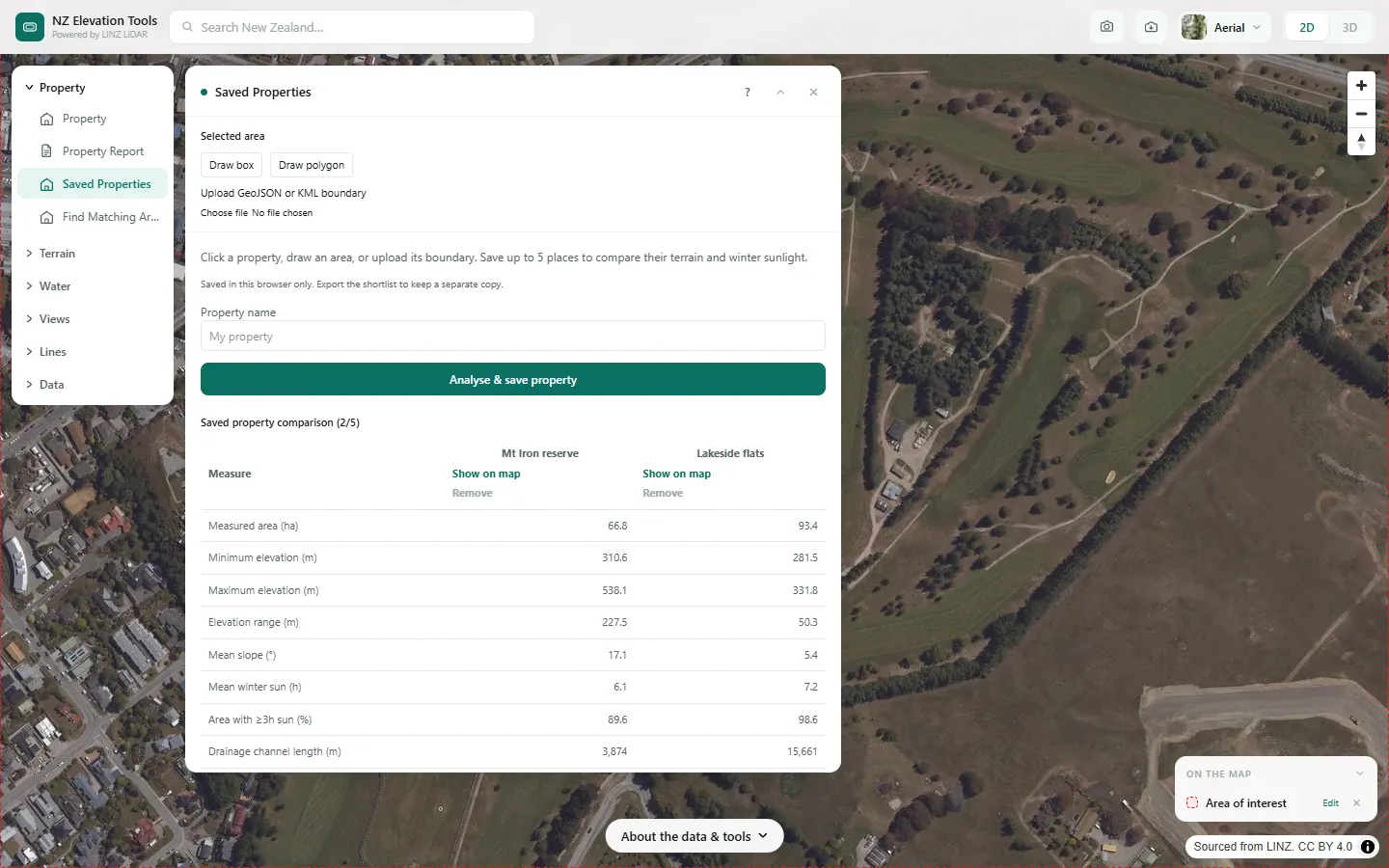
Compare properties side by side on the numbers that decide whether a block works: elevation range, slope classes, modelled winter sun and a drainage indicator. Save up to five places and the table fills in as each one is analysed.
The shortlist is kept in your browser, with notes per property, and exports as a file you can share with a partner or a builder.
Free to run · pay to download
Free to run, and free to save as a PNG image of the map. This tool has no file export of its own. For the terrain as a file, Download Data exports contours, a GeoTIFF or a 3D mesh with a pass: NZ$49 for 7 days or NZ$299 for 12 months.
Who uses this
- Lifestyle-block buyers. Rank a shortlist on terrain before driving out to see any of them.
- Buyers agents. Give clients a like-for-like terrain table.
When to use it
- You are choosing between several blocks and want the terrain numbers in one table.
- You want to come back to a shortlist later without re-selecting each parcel.
Which tool for your job
Saved Properties is one step in a bigger question. These are the jobs it helps with, and the tools that go with it.
If you’re working on buying a section or lifestyle block
What is the ground like, and how does it compare with the others on my list?
- 1.Property — Selects the legal parcel so every other tool is clipped to the boundary.
- 2.Property Report — A PDF with contours, slope, aspect, winter sun, drainage and elevation for that one parcel.
- 3.Saved Properties (this tool) — Up to five places side by side: elevation, slope, winter sun and drainage.
- 4.Water & Drainage — Where water will run and pond across the block in heavy rain.
How to use it
- Select a parcel, or draw or upload a boundary.
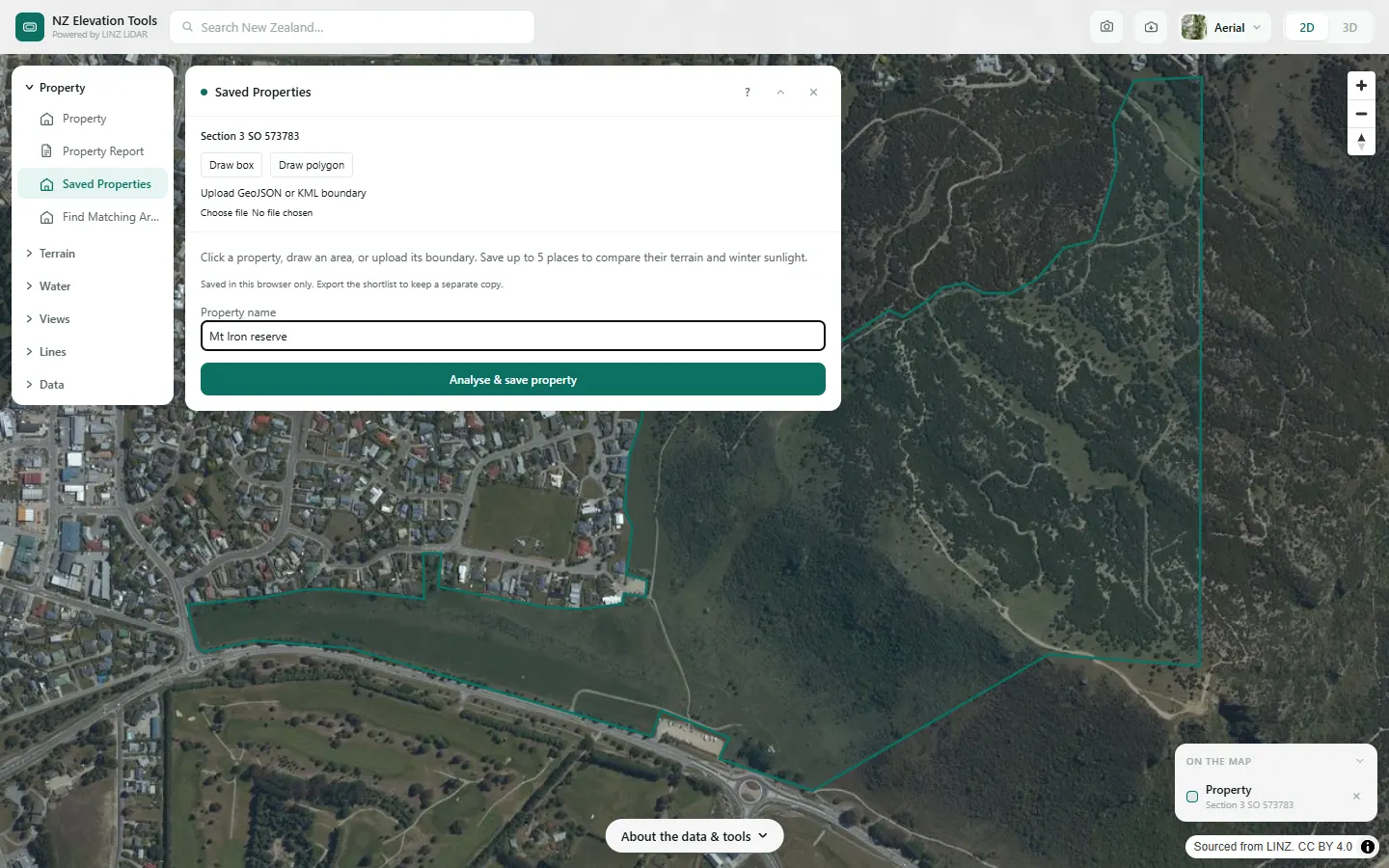
- Choose Analyse and save property. The terrain is sampled and the snapshot is stored.
- Repeat for up to five places. The table updates as each one finishes.
- Add notes per property, and export the shortlist as a JSON file to keep or share.
Step by step: Mt Iron, Wānaka
We save the Mt Iron reserve and a block of flat land by the lake, then compare the two.
What it showed
- The flats get more winter sun on average because nothing shades them; the hill has sunny north faces but also a shaded south-west flank.
- The list stays in this browser. Export comparison saves it as a file you can keep or send.
Screenshots from NZ Elevation Tools. Aerial imagery from LINZ Basemaps. Sourced from the LINZ Data Service and licensed by Environment Southland, Otago Regional Council and Queenstown-Lakes District Council for re-use under the Creative Commons Attribution 4.0 International licence.
How it works
For each saved boundary the tool loads the terrain, computes mean and range of elevation, slope classes, modelled direct sun hours on the shortest day, and a drainage indicator from flow accumulation, then stores the results with the boundary.
Everything lives in your browser's local storage. Nothing is sent to a server or tied to an account, which is also why the list is per device.
Reading the results
Compare like with like: a 4 ha block and a 40 ha block will differ in range simply because of size.
Winter sun hours are modelled on bare ground for 21 June and ignore trees and buildings.
Limits and warnings
- Five snapshots per browser. Saving the same boundary again replaces its snapshot.
- Clearing site data in the browser removes the list. Export the JSON first if you want to keep it.
- Where 1 m LiDAR has not been flown the tool falls back to the national 8 m elevation model, and the result says what share came from the fallback. The 8 m model was interpolated from 20 m map contours and is not fit for site-scale decisions.
Data and attribution
Results come from the LINZ national 1 m LiDAR bare-earth elevation model, read in your browser, with the national 8 m model filling any gaps. Tools that use the surface model (Sunlight, Viewshed, Object Heights) read the matching LiDAR surface tiles.
Elevation and cadastral data is sourced from the LINZ Data Service and licensed for re-use under the Creative Commons Attribution 4.0 International licence. Copyright in each LiDAR survey belongs to the body that commissioned it — a regional or district council, Waka Kotahi, NIWA and around thirty others — rather than to LINZ, which hosts and processes the national dataset. Every file exported from this site names the licensors whose surveys cover the area, and anything you publish from those files carries the same attribution requirement. See https://www.linz.govt.nz/products-services/data/licensing-and-using-data/attributing-elevation-or-aerial-imagery-data
Questions
Where is my shortlist stored?
In your browser only. Nothing is sent to a server and there is no account, so the list is per device. Export it to keep a copy.
Ready to try it?
Open Saved Properties on the map →Free to use, no account. Runs in your browser on LINZ open data. Downloading the results needs a pass: see prices.